

Investigate a question
An investigation follows a set of keywords across your data on one timeline. It suits questions like "was this a lasting topic or a one-day spike?".
You need: the stack running and the demo data loaded. GDELT events and radio transcripts are optional extra sources; without them the investigation uses your social posts.
1. Create the investigation
Open Investigations in the navigation and choose New Investigation.
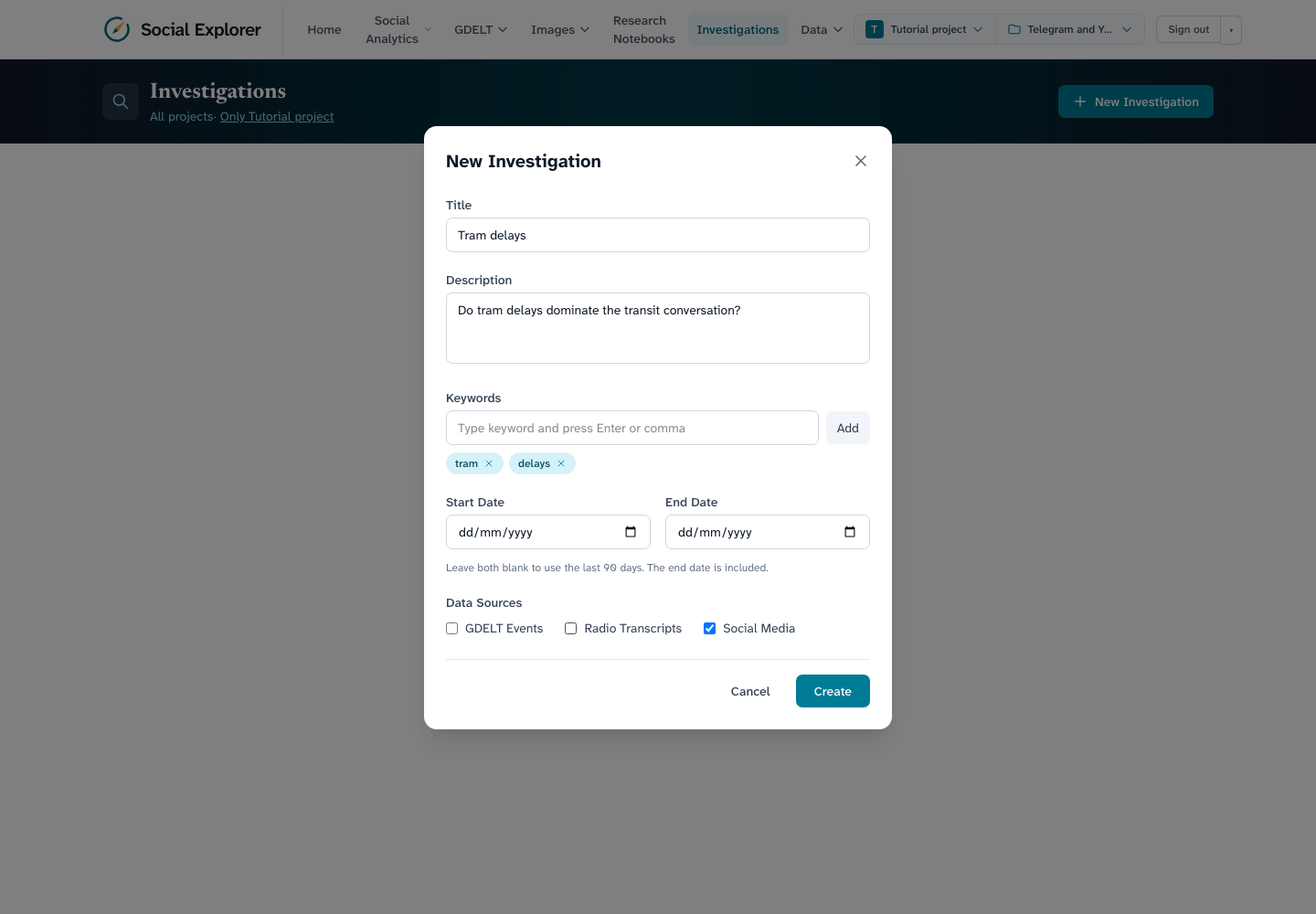
- Title is required. Add a description of the question, for example Do tram delays dominate the transit conversation?
- Type each keyword and press Enter (or comma):
tram,delays. Keywords match anywhere in a post's text, including hashtags, and are not case sensitive. - Optionally set a start and end date. If you leave them blank the investigation covers the last 90 days.
- Under Data Sources, untick the sources you have no data for. The demo data only has Social Media.
- Choose Create.
Starting from a workspace
When a workspace has no investigations yet, its Create Investigation button opens this same page with the form open and the workspace already chosen, so the investigation belongs to it and follows its project's membership.
2. Read the workbench
The investigation opens full screen.
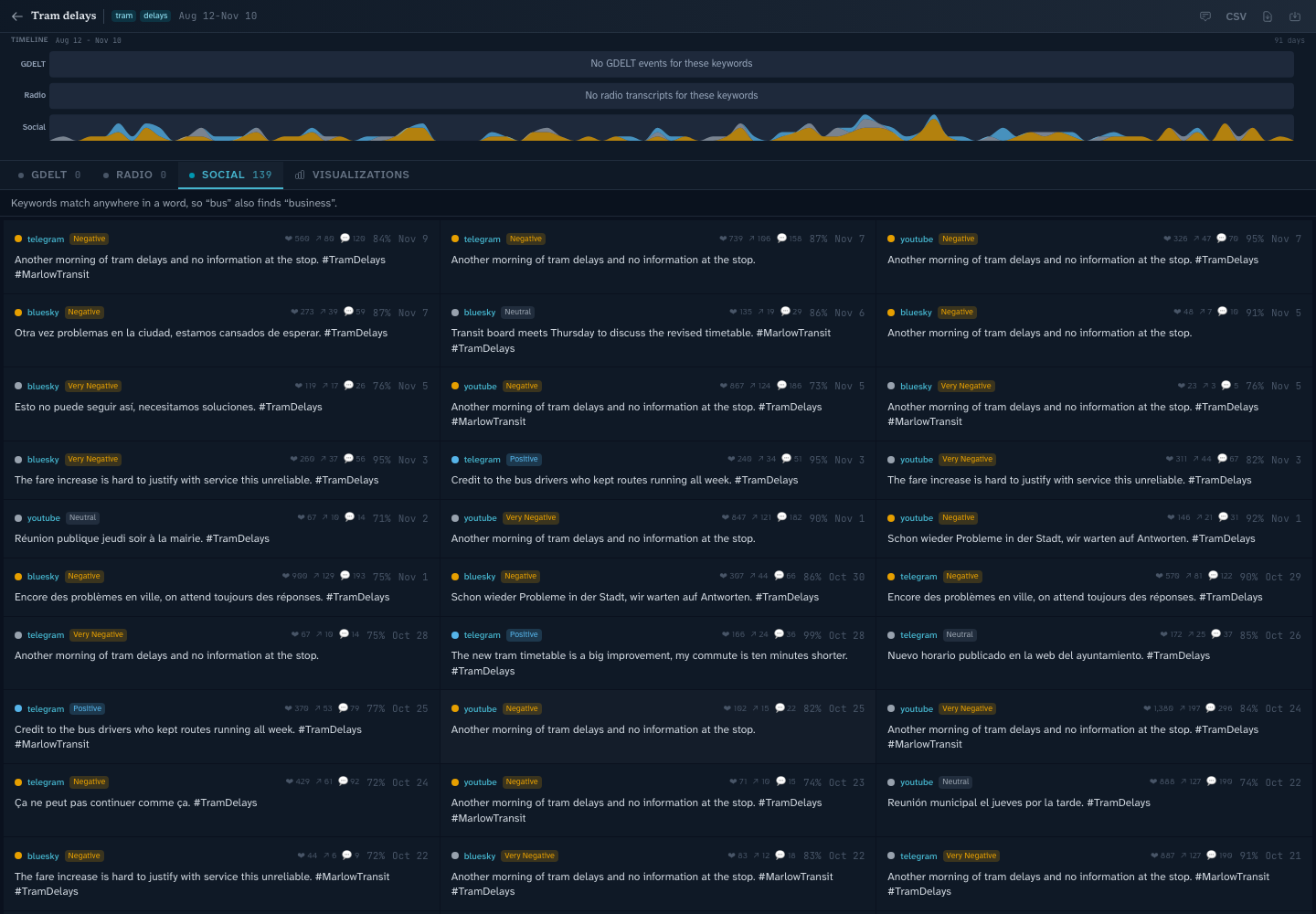
- Timeline (top): one lane per source, GDELT, Radio and Social, with the volume of matching items per day, coloured by sentiment. Here the Social lane shows the spike in transit posts.
- Tabs (middle): each source with its count of matches, for example Social 139. It opens on the first tab that has results. The Social tab lists each matching post with its platform, sentiment, engagement and date.
- Visualizations: a set of "portals". With social data, Sentiment (trend, breakdown, by source) and Volume (attention, metrics, stacked) work. Correlation, Topics, Geography and Actors need the optional GDELT and radio data, so they stay empty on the demo.
- Toolbar (top right): Notes, CSV and JSON export, and Save.
3. Try it
- Change the keywords to
fareand compare the shape of the timeline. - Narrow the dates around the spike to see only that week.
- Add a note with Notes to record what you found. Notes save as you add them.
- Open a post and choose Add to notes to quote it with a citation (platform, post id, author and time) so you can find it again. Export notes in the notes bar downloads them as a Markdown list.
Optional data
GDELT events come from the ETL pipeline (etl/) and radio transcripts from the WavePulse service. Once either is loaded, tick its source when creating the investigation and its lane and tab fill in.